Objectives for this workshop series
- To learn the basic skills involved in building a small website for a course or section.
- To actually build such a web site, and to do a good job of it.
- We will discuss the specifics of what
to do a good job of it
actually means in some depth.
- We will discuss the specifics of what
- To engage in practices that minimize the labor required to do so.
- To make your teaching practices more visible on the web.
- To be able to read various versions of HTML in other places on the web.
Objectives for today’s workshop
- To learn the basics of HTML, the standard markup language for web content.
- To understand the assumptions that HTML makes about your content, and to leverage those assumptions to produce a web site that is attractive and easily “parsed” by a viewer.
- To engage in practices that will allow you to participate effectively in the later workshops in this series.
- To begin actually constructing a static section website.
Details, details ...
- I’m going to be moving over a lot of details rather quickly today.
- You don’t need to memorize them all.
- There are great references on the web, of course.
- This presentation will be online in a few days.
- What’s important is that you pick up major concepts and work along with them.
- Come talk to me in my Lead TA office hours if you have questions!
- A collection of useful links is online at http://is.gd/todoho.
Why have a course/section website?
- Section websites give your students a central place to look for information.
- Handouts.
- Notes and announcements.
- Policy documents.
- Helps to make your teaching practices easily visible on the web.
- Helps to establish an identity for you on the web.
- Helps to link your teaching practices to your online identity.
- One of our recurring concerns throughout this series of workshops will be increasing the visibility of your web presence.
Why not just use some other service?
- Any choice you make for web presence management has some downsides. As with everything in life, no solution is ever perfect.
- Here are some downsides to building a web site by hand with HTML:
- You have to learn HTML. (Not hard, especially for literary theorists.)
- You have to see your content in a non-word-processing based way. (i.e., you have to think primarily about content and structure rather than presentation.)
- You have to find someone to host the content. (Not difficult, nor necessarily expensive.)
Why not GauchoSpace?
-
GauchoSpace imposes its own structure and presentation on your content.
- In my personal opinion, GauchoSpace’s layout is awful.
- Many of you have interacted with students who have a hard time finding information on GauchoSpace.
- This is partly because GauchoSpace’s design is not well-designed to leverage existing web-based information-seeking practices.
- GauchoSpace is access-gated.
- Your teaching practices are only visible to people enrolled in the course, and only while they are enrolled in the course.
Why not some free blogging service?
- Free blogging services tie your content to a particular provider.
- You can’t easily move your website from, say, Tumblr to WordPress without re-doing a lot of work.
- All free blogging services restrict what you can actually do with your HTML code.
- This is restrictive in ways I won’t fully explain until later in the series.
- Blogging services impose their own information ontology onto your content.
Why build a web site with HTML + CSS?
- It’s not that hard.
- You gain full control over how your text is presented.
- You gain full control over how your text is organized and ontologized.
- You can easily move your content elsewhere with a minimum of work if your content provider …
- goes out of business
- cancels the service you use
- changes the terms of service on you
- stops providing adequate service.
What you won’t learn in these workshops
- Everything about every version of HTML.
- Everything about producing cutting-edge designs.
- How to produce web sites with active content.
- More than a little bit about search-engine optimization.
WHICH IS TO SAY …
- Some of the information you’ll get here is partial or moderately simplified (but it’s honest and, I think, sufficient).
- You’re not going to walk out of here with the skills to be a professional web designer.
- However, you will walk out of here knowing enough to present your content to your students – and the world – in a way that reflects positively on you.
How the Web Works: Quick Refresher
- You type an address (URL) into your browser’s address bar.
- Your browser interprets the address to discover which server (another computer on the Internet) holds the requested document (“web page”).
- The document is fetched from that server.
- Any supporting documents are also fetched and interpreted.
- Your browser interprets and displays (“renders”) the document in a way that is compliant with standards.
- The user then (hopefully) reads and/or otherwise interacts with the document.
Basic website structure
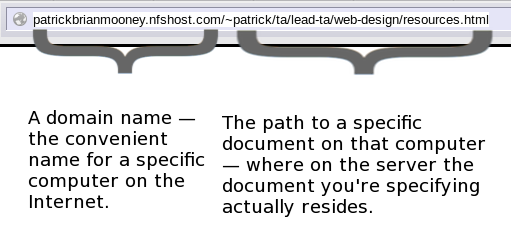
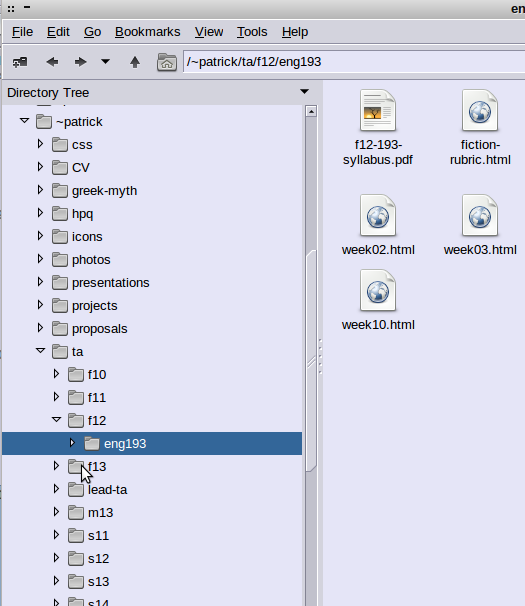
- Your web site will consist of multiple HTML files and any other supporting documents.
- Any images (videos, audio, other media) that are needed for your web site are not part of the HTML file itself, but separate documents.
So, HTML ...
- stands for “Hypertext Markup Language.”
- is the standard way of describing the structure of textual documents on the web.
- HTML is not a “programming language.” There are no commands. There are no variables. It just describes the structure of a text.
- does not give you complete control over every tiny aspect of how a document appears in the user’s browser.
- can be read and understood by every piece of software that deals with textual documents on the web.
- is a standard administered and maintained by the World Wide Web Consortium (W3C).
Some HTML coding examples
- HTML consists of plain text marked up with tags that indicate the structure of the text that is being marked up.
- There are several dozen legitimate tags (many of which you will never use). Each begins with
<(the less-than sign) and ends with>(the greater-than sign). - Tags can have attributes (characteristics). Certain attributes for certain tags are mandatory.
<img src="kitten.jpeg" width="192" height="108">
Tags in your document
- Each tag that you open must be closed before the end of the document.
- Technically, tags should be closed in the reverse order in which they were opened.
- Correct:
<i><b>Example</b></i> - Incorrect:
<i><b>Example</i></b>
- Correct:
- Some tags (those that are not containers for textual content) can be self-closed:
<img src="kitten.jpeg" width="192" height="108" />
A quick reminder
Every page, even a blank page, even a page of George W. Bush’s ignorant and vapid prose, is n-dimensional.
Jerome McGann, Radiant Textuality: Literature After the World Wide Web (p. 184; ch. 6)
- The texts that you work with, even in non-electronic documents, are already “marked up” in various ways.
- paragraphs, pagination, chapter divisions, emphasis, punctuation – are all (in a sense) paratextual elements that give you hermeneutic clues.
- All you’re doing with your HTML markup is making (a certain set of) hermeneutic clues explicit.
A minimally acceptable XHTML document
<!DOCTYPE html PUBLIC "-//W3C//DTD XHTML 1.0 Strict//EN"

          "http://www.w3.org/TR/xhtml1/DTD/xhtml1-strict.dtd">

          <html xmlns="http://www.w3.org/1999/xhtml">

          <head>

          <title>Some books I've read</title>

          </head>

          <body>

          <p>Of all the books I've read in graduate school, the <em>least</em> worthwhile was <cite>Infinite Jest</cite>.</p>

          <p>On the other hand, I quite enjoyed <cite>House of Leaves</cite>.</p>

          </body>

          </html>
- The
<!DOCTYPE>declaration is (to you) a string of gibberish whose purpose is to tell the browser what flavor of HTML you’re using. - The
xmlns=attribute on the <html> tag tells XML parsers how to parse the HTML. - You can just look up these values, or (even easier) use existing documents as templates.
Some Useful Block-Level Tags
<blockquote></blockquote>– you know what this does, right?<h1></h1>– marks a top-level heading<h2></h2>– marks a subheading<h6></h6>– marks a sub-sub-sub-sub-subheading<p></p>– marks up paragraphs<ul></ul>– unordered lists (bullet points)<ol></ol>– ordered lists (numbers, letters)<li></li>– a list item (inside<ol></ol>or<ul></ul>)
Some Useful Inline Tags
<abbr title="Modern Language Association">MLA</abbr>– an abbreviation<br />– a line break.<cite></cite>– marks a citation.<code></code>– marks up computer code.<em></em>– marks text that is emphasized.<img src="a URL" alt="some text" />– embeds an image.<strong></strong>– marks text that is very strongly emphasized.<q></q>– marks a quotation.
The <img> tag
<img src="fakebeard.jpg" width="480" height="640" alt="a man with a fake beard" />
<img src="http://i.imgur.com/HndKeBY.jpg" width="480" height="640" alt="a man with a fake beard" />
- The
srcattribute is the location (URL) of the image itself. - The
widthandheightattributes (measured in pixels) are hints to help the browser render the page without having to wait for the image to download. - The (mandatory)
altattribute tells browsers for visually impaired users what to say instead of displaying the picture. - Note that, because it’s not a container for text, the
<img>tag is self-closed.
Some image considerations
- The fewer images you use, the more quickly your web page will render.
- Each image has to be fetched separately. Each takes time.
- You can ameliorate the rendering delay by using the
widthandheightattributes on your<img>tag.
- Using a bunch of spurious damn images just because you feel like using a bunch of spurious damn images is often considered to be unprofessional, or at least poor design.
- Keep the focus on what matters.
- Use the
altattribute to provide cues for visually impaired users- ... and also for machines readin.g your document that can't understand images.
- Image file sizes will often be much larger than the size of the HTML document that refers to them. Hosting them elsewhere than on your own server can save you money.
- However, if you’re using images that are hosted on a site other than your own, make very sure that that’s OK with the site from which you’re linking them.
- A rule of thumb: use the JPEG format for photographs, and PNG for line-drawings and other non-photographic images.
The <a> tag
- Creates links:
<p><a href="http://gauchospace.ucsb.edu">GauchoSpace login page</a></p>
- Can also be used to create anchor points inside a document to which other
<a>tags can link:<a name="no-very-late-papers" /><h2><a name="no-very-late-papers">Late paper policy</a></h2>
- It’s increasingly common to create anchor points with the
idattribute (on any tag)<h2 id="no-very-late-papers">Late paper policy</h2>
- A link to an anchor point might look like this:
<p>Details are spelled out in my<a href="/~patrick/ta/s14/eng133so/section-guidelines.html#no-very-late-papers">late paper policy</a>.</p>- Links to anchor points are constructed the same way whether the anchor point is crated with
<a name="something">or<tag id="something">.
Different ways to specify URLs
- You can always specify a full URL any time a URL is required (with
<a>,<img>, etc.).<a href="http://gauchospace.ucsb.edu">GauchoSpace login page</a><img src="http://i.imgur.com/HndKeBY.jpg" width="480" height="640" alt="a man with a fake beard" />
- However, this is cumbersome if you have to do it all the time, so there are several ways to specify partial or relative URLs.
- These options are a good reason to have a sensible file system layout that you can remember.
If the base URL of a document is, say, http://patrickbrianmooney.nfshost.com/~patrick/ta/index.html …
- Full path from the root (top-level) folder:
-
<a href="/~patrick/personal.html">- means
http://patrickbrianmooney.nfshost.com/~patrick/personal.html - Note that the URL begins with a slash.
- means
-
Relative URLs
If the base URL of a document is, say, http://patrickbrianmooney.nfshost.com/~patrick/ta/index.html …
- A resource in the same folder as the document referring to it:
-
<img src="bulletpoint.png" />- means
http://patrickbrianmooney.nfshost.com/~patrick/ta/bulletpoint.png - Note that the relative URL is just a filename.
- means
-
- A resource in a sub-folder of the folder containing the referring HTML page:
-
<a href="s14/eng133so/index.html">- means
http://patrickbrianmooney.nfshost.com/~patrick/ta/s14/eng133so/index.html - Note that the relative URL does not begin with a slash.
- means
-
- A resource in the folder above the folder containing the current HTML page:
-
<a href="../personal.html">means- means
http://patrickbrianmooney.nfshost.com/~patrick/personal.html - Note that the relative URL begins with two dots and a slash.
- means
-
Tables for presenting information
| Function | Code |
|---|---|
| Begins the table | <table> |
| Table heading | <tr><th>Name</th><th>Grade</th></tr> |
| A table row | <tr><td>John Smith</td><td>B+</td></tr> |
| A table row | <tr><td>Ana Garcia</td><td>A-</td></tr> |
| Ends the table | </table> |
- A table consists of individual table rows,
<tr>. - Each table row contains table header (
<th>) and/or table data (<td>) “cells”.
Some table-related considerations
- In the 90s, it was common to enclose entire documents in a table to control document layout. Don’t do this.
- Tables have a semantic meaning.
- You know what tables are for in books: presenting numerical or categorical data in a specific compact form.
- This is also what tables are for in HTML!
- As with other tags that have a semantic meaning, a wide variety of software aside from standard web browsers expects tables to be used only for presenting tabular data.
- Screen readers and many other types of software that processes web pages depend on
<table>and related tags to only be used for tabular data and closely related purposes.
- Screen readers and many other types of software that processes web pages depend on
- Use CSS, not tables, for controlling page layout. We’ll talk about this next time.
- Tables have a semantic meaning.
- By default, HTML tables look kind of ugly. Sorry about that.
- The good news is that you also use CSS to control how tables look, and it gives you a lot of control over that.
- Again, that's a topic for next time. For now, be concerned with how to mark up the structure of your information, not how it looks on the page.
Special characters in HTML documents
- Begin with an ampersand; end with a semicolon.
- Replace reserved characters that have special meanings:
<means the less-than sign: <>means the greater-than sign: >&is the ampersand: &"is the (non-smart) double-quote mark: "
- Provide a convenient way to enter characters that you can’t easily type:
éis a lower-case E with an acute accent: éÉis an upper-case E with acute accent: É£is the British currency symbol: £©is the copyright sign: ©
- Case matters.
- Replace reserved characters that have special meanings:
Tags you’ll see, but shouldn’t use
- Here are some tags that are presentational (describe the intended appearance of text) rather than semantic (describing the structure of the text):
<b></b>– bold text<big></big>, <small></small>– to change text size<blink></blink>– is primarily used to ensure that people hate you.<center></center>– for centering text<font></font>– for font size and face<i></i>– italic text<sub></sub>, <sup></sup>– subscript, superscript.<u></u>– underlined text
- These are holdovers from earlier versions of HTML, when presentational tags were the norm.
- They still work, because you want your web browser to still be able to read web pages that were written thirty years ago. But using them now is bad practice.
Good semantic XHTML practices
- Code follows semantic rules and is formally valid.
- Tags and attributes are entirely in lowercase.
- Every tag is either self-closed or closed after the end of its content occurs.
- Reminder: tags are closed in the reverse order in which they were opened.
- Attribute values are enclosed in quotation marks.
- Code is easily readable by you so that changes are not painful to make.
- HTML rendering collapses whitespace (spaces, tabs, carriage returns).
- So you can use as many spaces (tabs, carriage returns) as you want to make your meaning and structure clear to yourself.
- Describes the structure of the text, rather than attempting to control appearance.
- To put it another way, you should separate appearance from content.
- We’ll talk in detail about controlling appearance at our next workshop.
- Some of these practices are mandatory.
Attributes for any tag
-
<tag id="something">- Attaches a unique ID to an individual tag for some purpose of your own.
-
<tag class="something something_else">- Indicates that the tag belongs to one or more groups that you yourself designate for some purpose of your own.
-
<tag style="some valid styling information">- This is a poor overall strategy for styling your text, for reasons we’ll talk about at our next meeting, but not a bad way to see quickly how things look.
- Note that there is no
<tag>tag. - We'll talk next time about what
some purpose of your own
means. (Some of it, anyway.)
Tags that do nothing (that’s visible)
-
<span></span>– marks an inline group of text for some purpose of your own.<p>I thought that<span class="book-title">1Q84</span>was a very disappointing novel.</p> -
<div></div>– marks a block-level group of text for some purposes of your own.<div class="document-header"><p>I was very disappointed by<cite>Infinite Jest</cite>.</p><p>However, I quite enjoyed<cite>House of Leaves</cite>.</p></div> - We’ll talk about these extensively next time.
A few words about validity & standards compliance
- You can get away with writing bad HTML, and it may look OK when rendered. However:
- Invalid HTML renders differently in different browsers.
- It’s also very hard for machines to parse in other ways.
- HTML that is presentational rather than semantic involves vastly more effort to maintain.
- Presentational, non-semantic HTML limits your ability to make your web pages intelligible to machines in addition to people:
- Google search (and other search engines)
- Screen readers for the visually impaired
- Other web applications …
Making sure it works
-
Write good HTML in the first place.
- Make it intelligible to you.
- Semantic, not presentational.
- Use a text editor that helps you to check validity with features like syntax highlighting.
- Check formal validity with the W3C’s validator.
- You can also use it to clean up your code visually.
- Test on at least two different browsers.
- Ideally, you should also test it on several devices:
- Your phone, different operating systems, etc.
- Ideally, you should also test it on several devices:
Intro to web information ontology
- Don’t make one giant page. Break information into multiple documents, each of which is …
- More or less complete in itself.
- Linked to other, related documents.
- And linked back to your home page.
- Use good journalistic writing practices.
- Most important information first in most documents; crucial information is “above the fold.”
- Your semantic markup unifies form and content for the viewer.
- Folder organization for files matches the information ontology of the pages.
- Your folder path will become part of the URL when you upload your site.
- Make each subfolder increasingly specific in some sense.
- Include an index.html file in each folder.
- A good general practice: to make each
index.htmlprovide an overview of what’s in that folder.
- A good general practice: to make each
A suggestion …
- You won’t really have learned anything today unless you apply these skills in the near future.
- Take your existing section guidelines handout and produce an HTML version.
- Start setting up a section website. You can take one of mine as a model, if you’d like.
- Produce HTML versions of any other documents that you have the time and inclination to produce.
- Run them through the W3C’s validator and resolve any problems.
- Come talk to me in my office hours if you hit any snags!
Building a minimalist personal web site
- You should have a main page with a blurb about who you are, plus links to major other information on the site. (Having some color on it somewhere is often thought to be a good idea.)
- Good pages to have might include:
- Web collections you’ve built for students.
- Your CV.
- Links to you on other places on the web.
- Linking back to your web page from your LinkedIn, Facebook, academia.edu, Twitter, Flickr, Google+, and other profiles is a smart move.
- A “personal info” page (if done thoughtfully and tastefully).
What's next (let’s talk about scheduling)
- When’s a good time to have a follow-up workshop? Next week?
- Our second workshop (winter quarter) will introduce CSS, or Cascading Style Sheets.
- This will serve as an introduction to how you control the presentation of semantically encoded HTML.
- We will also talk about hosting your content once you have some content to host.
- Our third workshop (spring quarter) will present some additional, related topics:
- Making your content meaningful to search engines and other text-parsing software.
- Preventing search engines from indexing your content.
- Google Scholar’s article-inclusion guidelines.